

Are you tired of juggling multiple email apps just to check all your messages? What if you could see every email from your different accounts right inside Gmail?
Adding a third-party email account to Gmail makes this possible, saving you time and hassle. In this guide, you’ll learn simple, step-by-step instructions to connect your other email accounts directly to Gmail. By the end, you’ll have one powerful inbox that keeps you organized and in control.
Keep reading to discover how easy it is to bring all your emails together in one place.
Prepare Your Third-party Email Account
Preparing your third-party email account is an important step before adding it to Gmail. This ensures smooth syncing and email delivery. You need to check some settings and enable certain features. These steps help Gmail access your other email account safely and correctly.
Check Email Settings
Start by logging into your third-party email account. Look for the settings or options menu. Find the section about forwarding, POP, or IMAP settings. Confirm the server names and port numbers. This info is necessary for connecting your account to Gmail. Write down these details to use later.
Enable Imap Or Pop Access
Gmail uses IMAP or POP to fetch emails. IMAP keeps emails synced across devices. POP downloads emails to one device only. Check if your third-party email has IMAP or POP enabled. Turn on the one you prefer for Gmail. Without this, Gmail cannot read your emails.
Generate App Password If Needed
Some email providers require an app password. This special password allows Gmail to access your account. It keeps your main password safe. Go to your email account’s security settings. Look for app password or two-step verification options. Create a new app password for Gmail. Use this password during setup in Gmail.
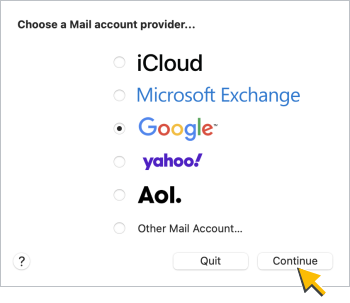
Credit: knowledge.workspace.google.com
Access Gmail Settings
Accessing Gmail settings is the first step to add a third-party email account. Settings hold all the options you need to manage your email accounts. Knowing how to open and navigate these settings makes the process smoother.
This section guides you through the simple steps to reach Gmail settings quickly. Follow along to prepare your Gmail for linking another email account.
Open Gmail Account
Start by signing in to your Gmail account. Use a web browser on your computer or mobile device. Enter your email and password correctly. After logging in, you will see your Gmail inbox. This is where all your emails appear.
Navigate To Settings Menu
Look for the gear icon in the upper right corner of the Gmail page. Click on this gear to open a quick menu. Select “See all settings” from the options shown. This action takes you to the full settings page.
Here, you find tabs like General, Labels, and Accounts. The Accounts tab is where you add other email accounts. Take your time to explore these tabs before proceeding.
Add Your Email Account

Adding your third-party email account to Gmail lets you manage all messages in one place. This saves time and keeps your inbox organized. The process is simple and only takes a few steps. Follow along to connect your other email account to Gmail quickly.
Go To Accounts And Import Tab
First, open Gmail on your computer. Click the gear icon in the top right corner. Select “See all settings” from the dropdown menu. In the settings menu, click the “Accounts and Import” tab. This section controls your linked email accounts and import options.
Select Add A Mail Account Option
Scroll down to the “Check mail from other accounts” section. Click the “Add a mail account” link. A new window will appear asking for your email address. Enter the address of the account you want to add. Click “Next” to continue with the setup process.
Enter Email Account Details
Entering your email account details is the key step to connect your third-party email with Gmail. This process ensures Gmail can send and receive emails from your other account. You will provide specific information about your email address and server settings. Follow each step carefully to avoid errors.
Input Email Address
Start by typing the full email address you want to add. Use the exact address provided by your email service. Double-check for typos to prevent connection problems. Gmail uses this address to identify your account.
Choose Import Method
Select how Gmail will access your emails. You can pick between POP3 or IMAP, depending on your email provider. POP3 downloads emails to Gmail, while IMAP syncs messages across devices. Choose the method that fits your needs best.
Enter Incoming Server Information
Next, type the incoming mail server details. This includes the server name, port number, and security type. These details come from your email service provider. Correct server info allows Gmail to fetch your emails properly.
Configure Outgoing Server Settings
Configuring outgoing server settings is key to sending emails from your third-party account through Gmail. This setup controls how Gmail sends your messages using your other email address. Without proper configuration, your emails might not send or could be marked as spam.
Start by setting up the SMTP server. This server handles the delivery of your outgoing emails. Next, enter your authentication details. These details prove you have permission to send emails from that account. Both steps ensure your emails go through smoothly and safely.
Set Up Smtp Server
First, find the SMTP server address of your third-party email provider. It usually looks like smtp.example.com. Enter this address in Gmail’s settings under the outgoing server section.
Choose the correct port number. Common ports include 465 or 587. Check your email provider’s instructions for the right one. Select the security type, usually SSL or TLS. This keeps your emails safe during transmission.
Enter Authentication Details
Enter the username and password of your third-party email account. These details allow Gmail to send emails on your behalf. Make sure you type them correctly. Incorrect details will cause sending errors.
Some providers require app-specific passwords. Use these if your regular password does not work. This step is important to keep your account secure and functional.

Credit: www.youtube.com
Finalize Account Setup
Finalizing your account setup is the last step to connect your third-party email with Gmail. This step ensures your account works properly for sending and receiving emails. Follow these simple instructions to complete the process smoothly.
Verify Account
Gmail needs to confirm that you own the third-party email address. It sends a verification code to that email. Check your third-party inbox for this code. Enter the code in Gmail’s setup window. This step secures your account and prevents unauthorized access. Without verification, Gmail won’t link the account.
Choose Sending Preferences
Decide how you want to send emails from this account using Gmail. You can send emails as your third-party address or as your Gmail address. Select the option that fits your needs. You can also set the default email address for new messages. This helps keep your emails organized and clear.
Manage Linked Accounts
Managing linked accounts in Gmail helps keep your email organized. It allows you to see all your messages from one place. This section explains how to check your sync status and edit or remove accounts. These steps help maintain smooth email flow and avoid confusion.
Check Sync Status
To ensure your linked account works well, check the sync status. Open Gmail settings and go to “Accounts and Import.” Look for the connected email address and see if it shows “syncing.” Syncing means Gmail updates your messages regularly. If it says “not syncing,” your emails might not update properly. Refresh the page or reconnect your account to fix this.
Edit Or Remove Accounts
Editing or removing linked accounts helps manage your inbox better. Go to Gmail settings and select “Accounts and Import.” Find the account you want to change. Click “edit info” to update the display name or reply-to address. To remove the account, choose “delete” or “remove.” Removing stops Gmail from fetching emails from that account. Only remove accounts you no longer use or want linked.

Credit: support.apple.com
Troubleshoot Common Issues
Adding a third-party email account to Gmail can sometimes cause issues. These problems stop your emails from syncing correctly. Troubleshooting helps fix these common problems fast. Follow these simple steps to keep your email running smoothly.
Fix Authentication Errors
Authentication errors happen when Gmail cannot verify your username or password. Double-check your login details. Make sure you enter the full email address and the correct password.
Check if your email provider requires app-specific passwords. Some providers need this for third-party apps like Gmail. Enable two-step verification and create an app password if needed.
Ensure your account is not locked or suspended. Visit your email provider’s website to confirm your account status. Unlock your account if necessary before adding it to Gmail.
Resolve Server Connection Problems
Server connection problems block Gmail from syncing emails. Verify your incoming and outgoing server settings. Use the server names, ports, and security types your email provider gives.
Check your internet connection. A weak or unstable network can cause syncing issues. Try switching to a different Wi-Fi or using mobile data.
Temporarily disable firewalls or antivirus software. These tools sometimes block Gmail from connecting to email servers. Turn them off and try syncing your account again.
Frequently Asked Questions
How Do I Add A Third-party Email To Gmail?
To add a third-party email, go to Gmail Settings, then Accounts and Import. Click “Add a mail account,” enter your email, and follow the steps to link it.
Can I Send Emails From A Third-party Account In Gmail?
Yes, Gmail allows sending emails from linked third-party accounts. After adding the account, choose it as the “From” address when composing messages.
Is It Safe To Link Third-party Email To Gmail?
Linking third-party emails to Gmail is secure if you use correct settings and strong passwords. Gmail uses encryption to protect your data during syncing.
What Email Protocols Does Gmail Support For Third-party Accounts?
Gmail supports POP3 and IMAP protocols for adding third-party email accounts. IMAP is preferred for syncing emails across devices in real time.
Conclusion
Adding a third-party email to Gmail saves time and effort. You can check all your emails in one place. The process is simple and quick to follow. Just take a few minutes to set it up right. This helps you stay organized and never miss important messages.
Try these steps today to improve your email experience. Managing multiple accounts becomes easier with Gmail’s tools. Enjoy the convenience and keep your inbox tidy.